How to Add Subtitles to Video Without Editing It
You do not need video editing software to add subtitles. Learn the three ways to add subtitles to a video, and how to load an SRT or VTT file while you watch.

Contents
01Three ways to add subtitles02Method 1: load a subtitle file while you watch03Getting a subtitle file04Method 2: add a subtitle track to the file05Method 3: burn subtitles into the picture06Which subtitle format should you use?07Fixing subtitles that do not line upThere are two very different jobs hiding behind "how to add subtitles to video". One is publishing: you want subtitles to travel with your video file or upload. The other is watching: you have a video and a subtitle file, and you just want to see them together. The second takes seconds and needs no editing at all.
Three ways to add subtitles
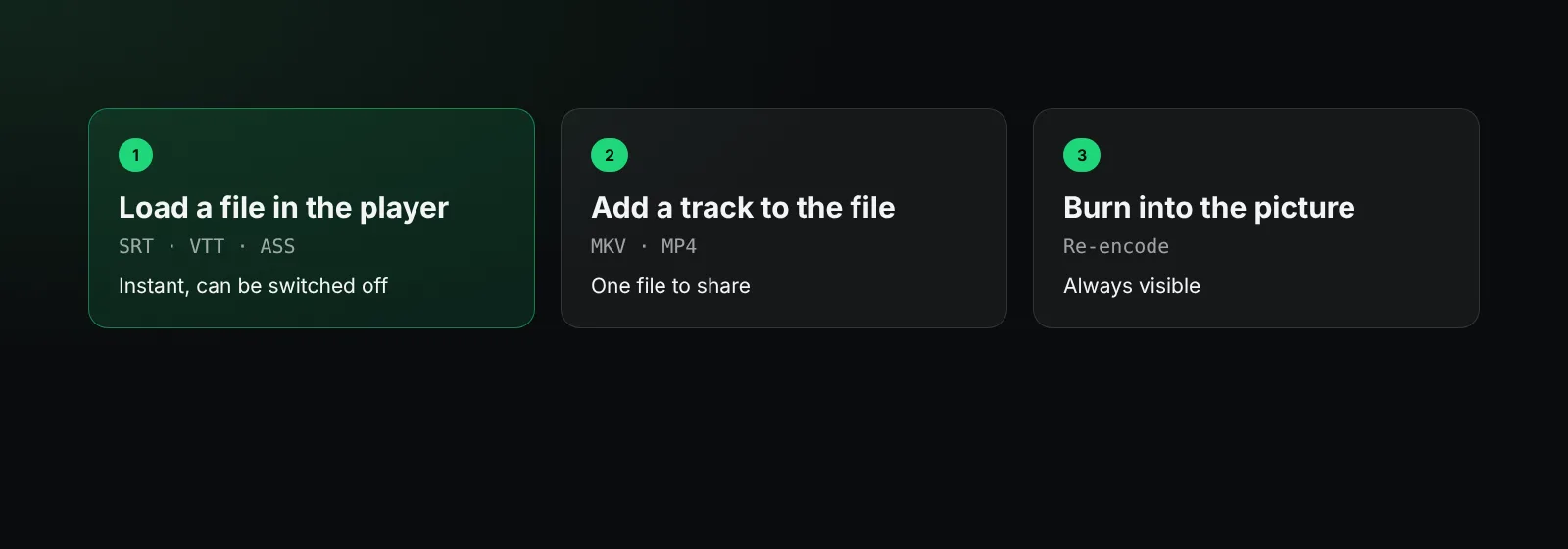
| Method | What it means | Best for | Can be turned off? |
|---|---|---|---|
| Load a subtitle file in the player | The player reads an SRT, VTT or ASS file alongside the video | Watching | Yes |
| Add a subtitle track to the file | The subtitles are stored inside an MKV or MP4 container | Sharing a single file | Yes |
| Burn in (hardcode) | The text is drawn into the picture itself | Social media clips | No |
Method 1: load a subtitle file while you watch
This is the fastest way and leaves your video untouched. In the BetterStream browser extension:
- Play the video in BetterStream: a direct link, an HLS or DASH stream, or a title from your playlists.
- Open the subtitles menu in the player.
- Choose to load a subtitle file and pick your
.srt,.vttor.assfile. - The subtitles appear immediately. Adjust size, colour and background in Style, and if they are early or late, fix them in Timing.
Your style settings are remembered for every video. The file is read on your computer and is not uploaded anywhere.
Getting a subtitle file
- You already have one next to the video, often with the same name and a
.srtextension. - Make your own: write it in a text editor using the format in what is an SRT file, or use a subtitle editor that shows the audio waveform.
- Automatic transcription tools can create a first draft you then correct.
Make sure you have the right to use any subtitle file you download, and pick one made for the same version of the video so it lines up.
Method 2: add a subtitle track to the file
If you want one file that carries its own subtitles, put them in a container that supports subtitle tracks:
- MKV holds SRT and ASS tracks directly and is the most flexible.
- MP4 supports its own text track format; tools convert SRT to it when you add it.
Video tools can "mux" a subtitle file into the container without re-encoding the video, so it takes seconds and keeps the original quality. Players then show the track in their subtitle menu.
Method 3: burn subtitles into the picture
Burning in draws the text onto every frame. It works everywhere, including platforms that ignore subtitle tracks, but it cannot be switched off or restyled, and it requires re-encoding the video. Use it for short clips meant for social media, where many people watch without sound.
Which subtitle format should you use?
- SRT: simplest and works almost everywhere.
- VTT: the web standard, with positioning. See what is a VTT file.
- ASS: rich styling and effects.
BetterStream loads all three.
Fixing subtitles that do not line up
If every line is early or late by the same amount, shift them in the player's timing panel in 0.1 or 0.5-second steps. If they drift further apart over time, the frame rate differs; our guide on how to sync subtitles covers both.
Frequently asked questions
How do I add subtitles to a video for free?
Load a free SRT or VTT file into a player that supports subtitle files, such as the free BetterStream extension. No editing is needed.
Can I add subtitles to a video in Chrome?
Yes. Play the video in BetterStream in Chrome, open the subtitles menu and load your file.
How do I add subtitles permanently?
Either add a subtitle track to an MKV or MP4 file, or burn the subtitles into the picture with a video editor.
Why do my subtitles show strange characters?
The subtitle file is not saved as UTF-8. Open it in a text editor and save it again as UTF-8.
More in the help center and best font for subtitles.